Global Discovery Settings wizard
The Global Discovery wizard lets you do the following:
• Add and remove entries in
Global credentials lists. These lists hold SNMP v1/v2c community strings, SNMP v3 credentials, and CLI login credentials for devices.
Perform the following procedure to manage global discovery settings.
To configure global credentials
1. Log in to the UI as a user with administrative privilege.
2. Choose Configure > All Settings > Discover > Global Discovery Settings.
The Global Discovery Settings wizard appears, as shown in the following screen.
Global Discovery Settings dialog box
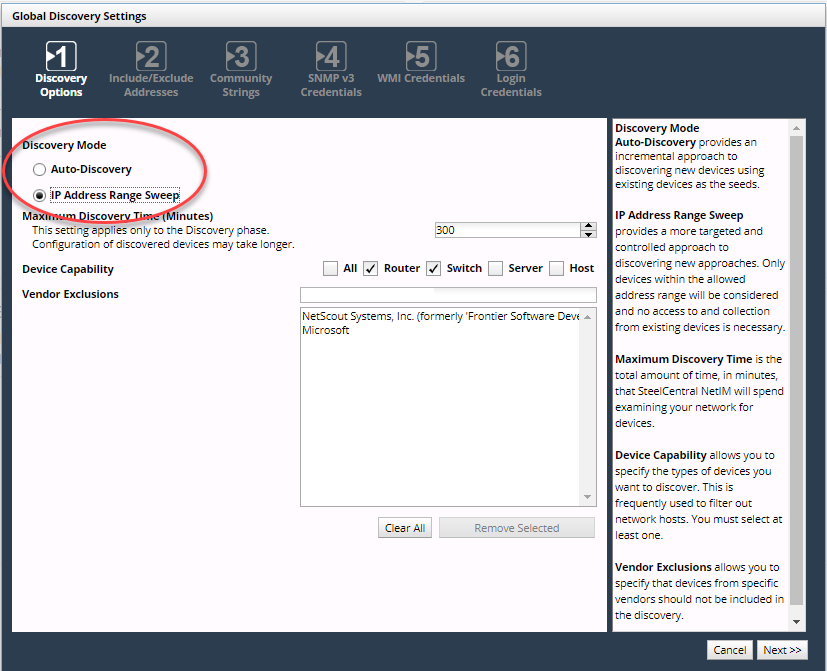
Wizard Step 1 - Discovery Options:
3. Choose the type of discovery you want performed on your network. Choices are the classic crawl-based autodiscovery or IP address range sweep. Then following the instructions in the right frame, fill out the rest of the page.
4. Click Next.
Wizard Step 2- Include/Exclude Addresses:
5. Enter the IP addresses and address ranges that should be explicitly included or excluded from all autodiscovery processes.
The local loopback (127.0.0.0/8) is excluded by default.
6. Click Next.
Wizard Step 3 - Community Strings:
7. Enter the default SNMP v1/v2c community strings that NetIM should use when trying to contact devices.
If you have previously specified community strings using either this wizard or the Add/Discover Devices wizard, those strings will be in the list already.
8. Click Next.
Wizard Step 4 - SNMP v3 Credentials:
9. Enter the default SNMP v3 credentials that NetIM should use when trying to contact devices. SNMP v3 credentials contain a security level, username, context name, authentication protocol, authentication password, privacy protocol, and privacy password.
If you have previously specified SNMP v3 credentials using either this wizard or the Add/Discover Devices wizard, those credentials will be in the list already.
10. Click Next.
Wizard Step 5 - WMI Credentials:
11. Enter WMI credentials (username/password/domain) manually, one at a time. Additionally, you can upload a text file containing credential strings (one per line). The file contents are added to the list in addition to any manually entered credentials.
12. Click Next.
Wizard Step 5- Login Credentials:
13. Enter the default credentials that NetIM should use when trying to log in to devices. Credentials contain a username, password, and optional privileged password, separated by forward slashes (/) or commas.
If you have previously specified login credentials using either this wizard or the Add/Discover Devices wizard, those credentials will be in the list already.
14. Click Next.
15. Click Finish.
Related topics