Manually enabling or disabling metric polling
This section describes how to manually enable or disable metric polling. You may want to do this under the following circumstances:
• You want to selectively poll devices.
• You do not want to automatically poll all newly discovered devices.
To manually configure polling
1. Log in to the UI as admin.
3. Choose Configure > Device Manager.
The Device Manager screen appears.
Device Manager screen
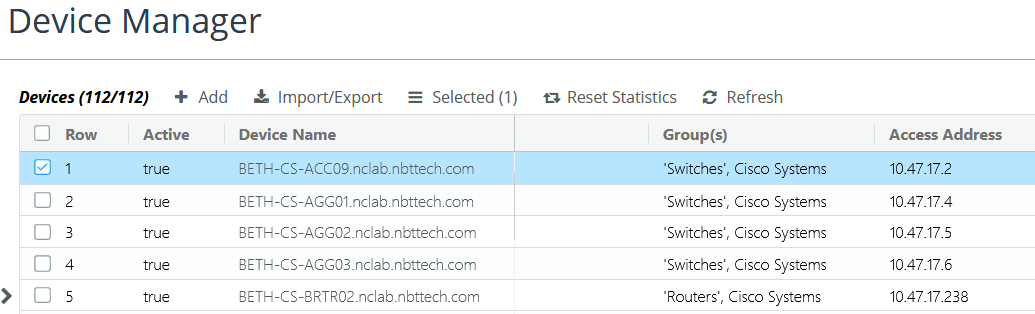
4. Select a device or devices of interest. by clicking in the box next to the device entry. The entry turns blue.
5. On the action menu, choose General > Edit.
The following screen appears.
Edit Device pop-up
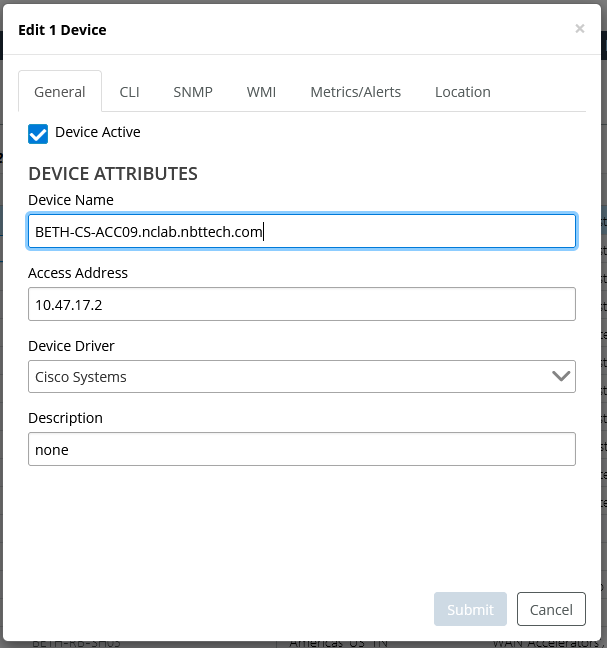
If you are editing more than one device entry and a check box in the Edit Devices dialog box is gray (not black), it means that the highlighted device entries are a mix of enabled and disabled check boxes and the Edit Devices dialog box displays the state based on the setting of the first highlighted device. If it appears as enabled and you want to enable it for all highlighted devices, you must first clear the check box, then reselect the check box to enable it for all highlighted devices.
6. To enable metric polling:
– On the General tab, ensure that Device Active is selected.
– On the SNMP tab, ensure that SNMP Collection Active is selected.
– On the Metrics/Alerts tab, ensure that Metric Polling Active is selected and that a polling profile is selected from the drop-down menu.
7. To disable metric polling for selected device(s):
– On the Metrics/Alerts tab, clear Metric Polling Active.
8. Click Submit to record your changes.