Rollup wizard
Use the Rollup wizard to configure data retention thresholds for age out and roll up, as well as the rollup operations that will be performed on metric classes that can be rolled up.
Perform the following procedure to configure metrics rollup/age-out.
To configure metrics rollup/age-out
1. Log in as a user with administrative privilege.
2. Choose Configure > All Settings > Monitor > Rollup.
The Rollup wizard appears, as shown in the following screen.
Rollup pop-up
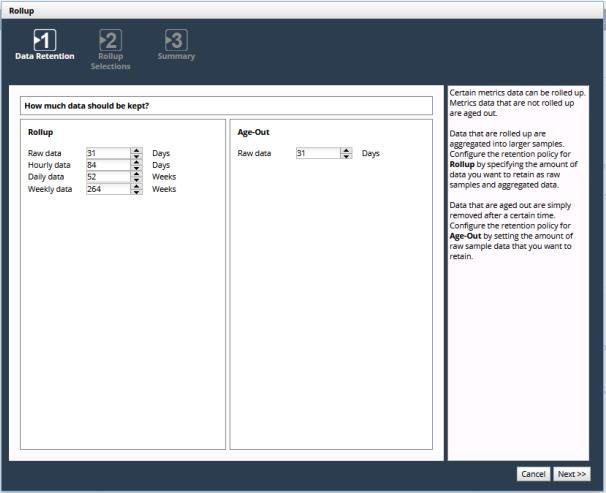
Wizard Step 1 - Data Retention:
Configure the retention schemes for rollup and age-out of metrics data.
Some metric classes (typically those that contain numeric data) support rollup while other metric classes do not. Data from metric classes that do not support rollup are aged out, meaning they are deleted after a certain time. In this page you configure retention schemes for both rollup and age-out.
Click Next when you are finished or just click Next to use the default retention periods.
Wizard Step 2 - Rollup Selections:
Metric classes are organized under “Device” and “Interface” headings. Click a heading to expand the list of applicable metric classes. Only metric classes whose data can be rolled-up are listed. If a metric class is not listed, metrics data for that metric class is aged out. The available rollup operations vary by metric class. A maximum of three rollup operations can be selected for a metric class. When you change rollup operations, new metric data will be rolled up in that manner from that point forward.
3. Select a metric class on the left to view the available rollup operations on the right.
The metric classes that represent utilization and throughput for physical and logical links are grouped together as Interface/Connection/Path Utilization and Throughput. You must configure the same rollup operation(s) for all.
4. Select up to a maximum of three rollup operations from the available options. If the maximum number of rollup operations is selected, you must unselect a rollup operation before you can select another.
5. Repeat until you have configured rollup operations for all metric classes.
6. When you are finished click Next.
Wizard Step 3 - Summary:
7. Review the metrics retention details. If you need to make changes, click Previous. When the information is correct, click Finish.