Topology navigation
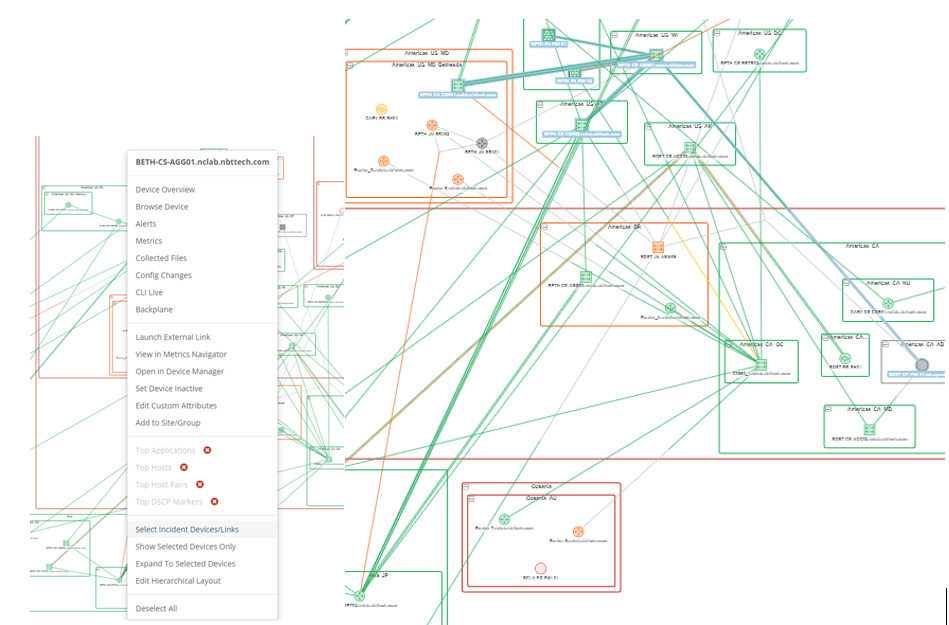
The Topology Viewer has a right-click menu option to “Select Incident Links/Devices.” This feature allows you to highlight a device’s connections, as follows.
Select Incident Links/Devices feature
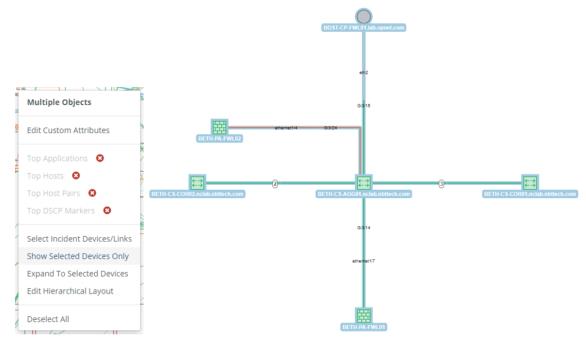
You can then choose the option to “Show Selected Devices Only” to further focus on just the device and its immediate neighbors, as follows.
Show Selected Devices Only option
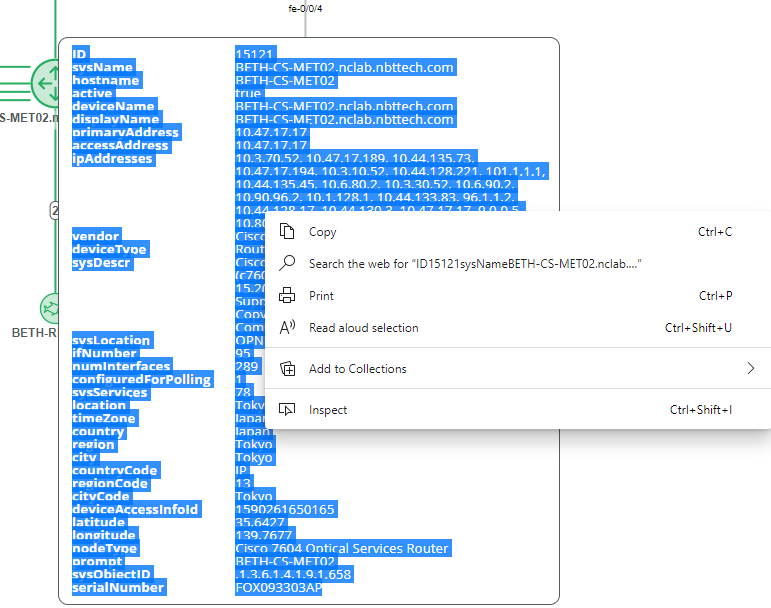
Additionally, the topology view’s mouse-over tool-tip information can be selected and copy and pasted for reference in documents or presentations.
Copying and pasting topology view information
You can also use right-click mouse operations on an object in the topology in addition to left-click mouse selection and the action menu (three vertical bars).
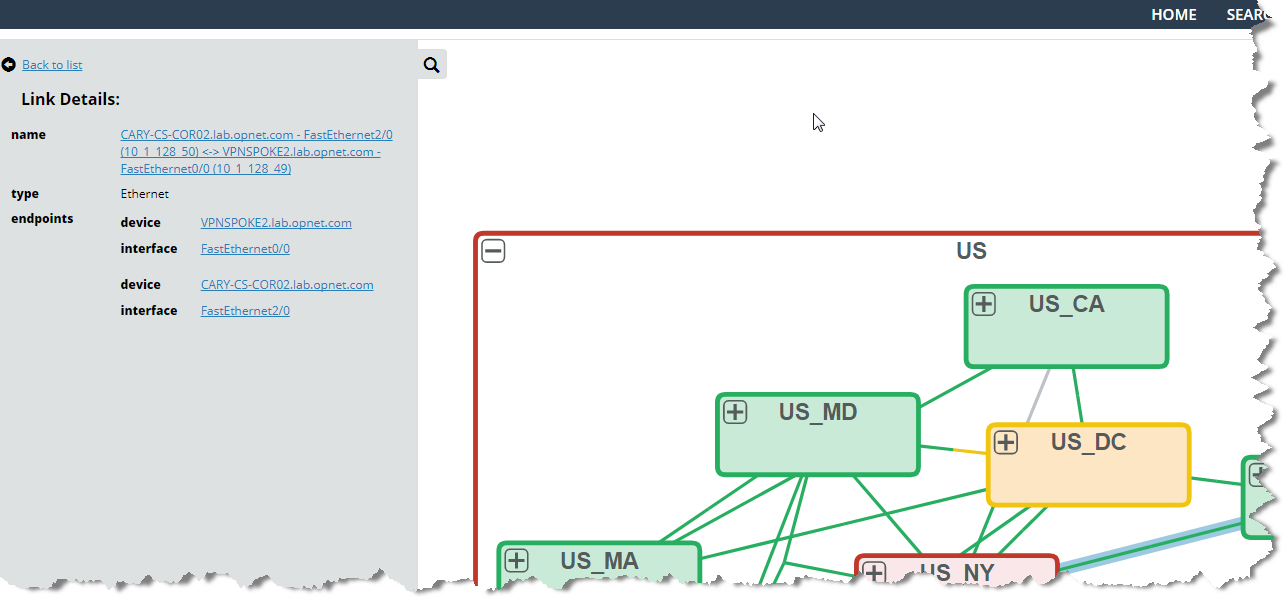
Link objects are selectable and have associated device and interface endpoint information in the information panel in the Topology Viewer, as shown in the following screen.
Link objects in the information panel in the Topology Viewer
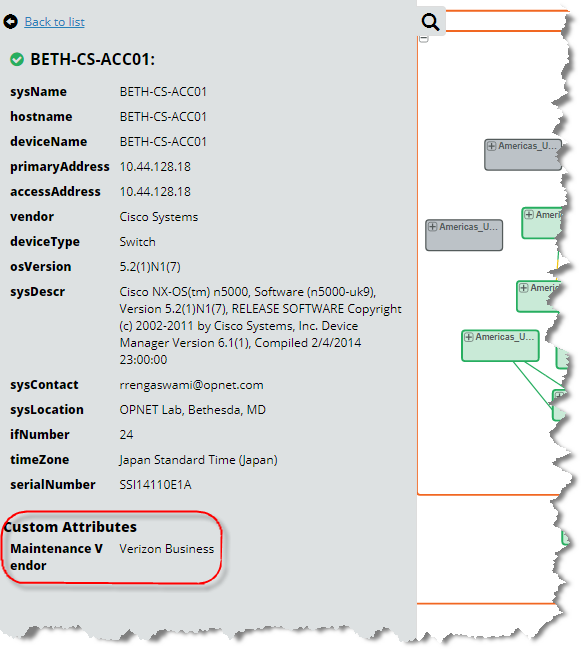
In addition to standard attributes, you can view custom attributes assigned to an object in the Object Details panel of the Topology Viewer, as follows.
Custom attributes in the Object Details panel of the Topology Viewer
When you navigate from the Topology Viewer and return to the Topology Viewer, the previous state is preserved including the state of the AppNetwork Path rendering.
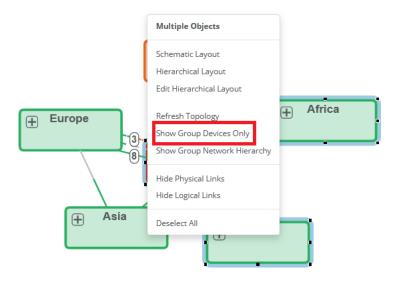
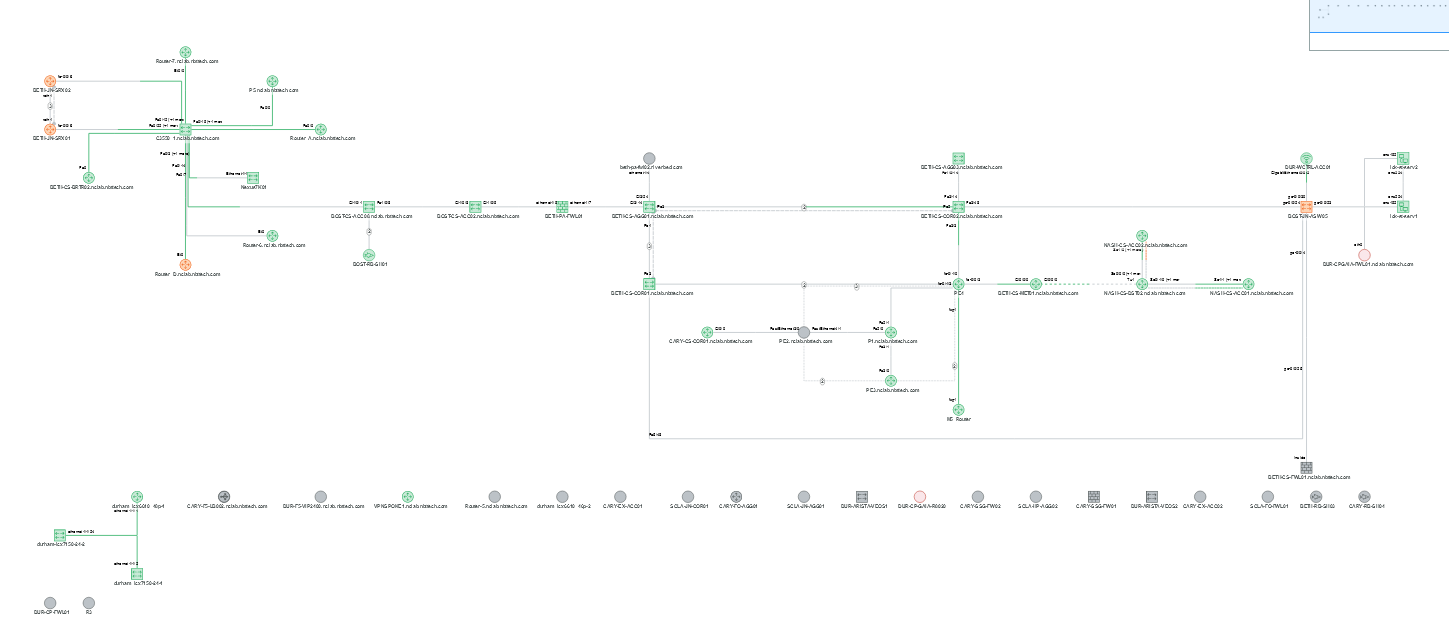
You can select multiple sites or devices and then select Show Group Devices Only to view the selected set of devices in a schematic layout, as shown in the following screens.
Selecting multiple sites or devices
Viewing the selected set of devices in the schematic layout
Use the back navigation button (left arrow) to return to the standard topology view.
You can save any edit you make and save any type of topology view, including hierarchical views, for later recall or sharing. You can also manage your views from the Topology Views page.