Working with the Host view
NetIM supports a Host object view page and drill-down to the connected device and connected interface.
To work with the Host view
1. Click the Hosts link on the Home page.
The Search page displays with a list of hosts.
2. To view the Host page for a host, click the link associated with the host.
3. To drill down to the device information, click the link in the Host Connectivity frame. To view a schematic, select the Backplane tab of the Host page.
4. To view information about the objects, highlight an object and then click the info icon in the upper‑right corner.
The Device page Backplane view
The Backplane tab of the Device page provides the ability to view all direct neighbors of a device as well as the health and attributes of the device, its connected interfaces, its neighbor devices, and neighbor interfaces, as follows.
Viewing all direct neighbors of a device
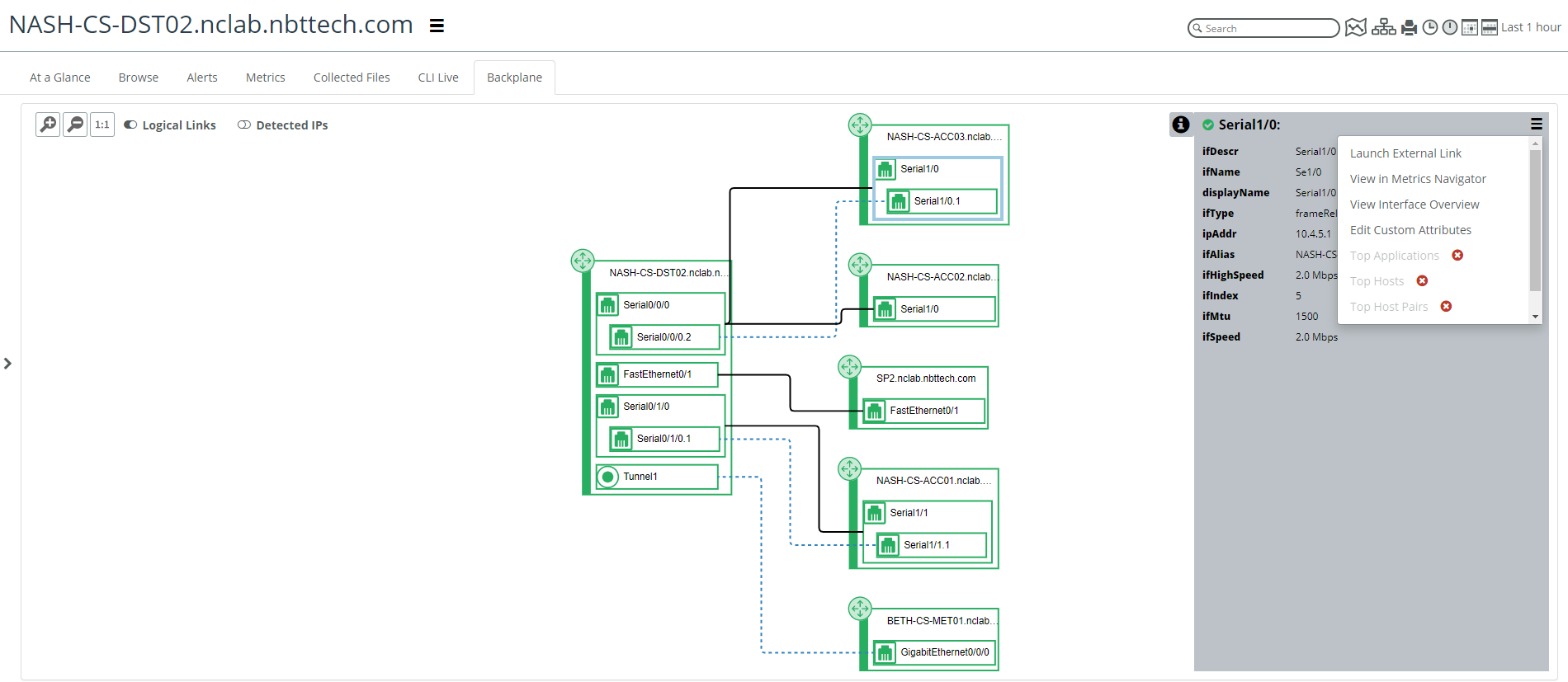
Additionally, the backplane view optionally provides logical link connectivity and host connections. The backplane view allows you to launch to the neighbor devices and interfaces using the action menu (three vertical bars).
The Backplane View tab is also available on the Interface page and Host page to provide you with a graphical view of what is connected to the interface and host.
Device page Collected Files tab
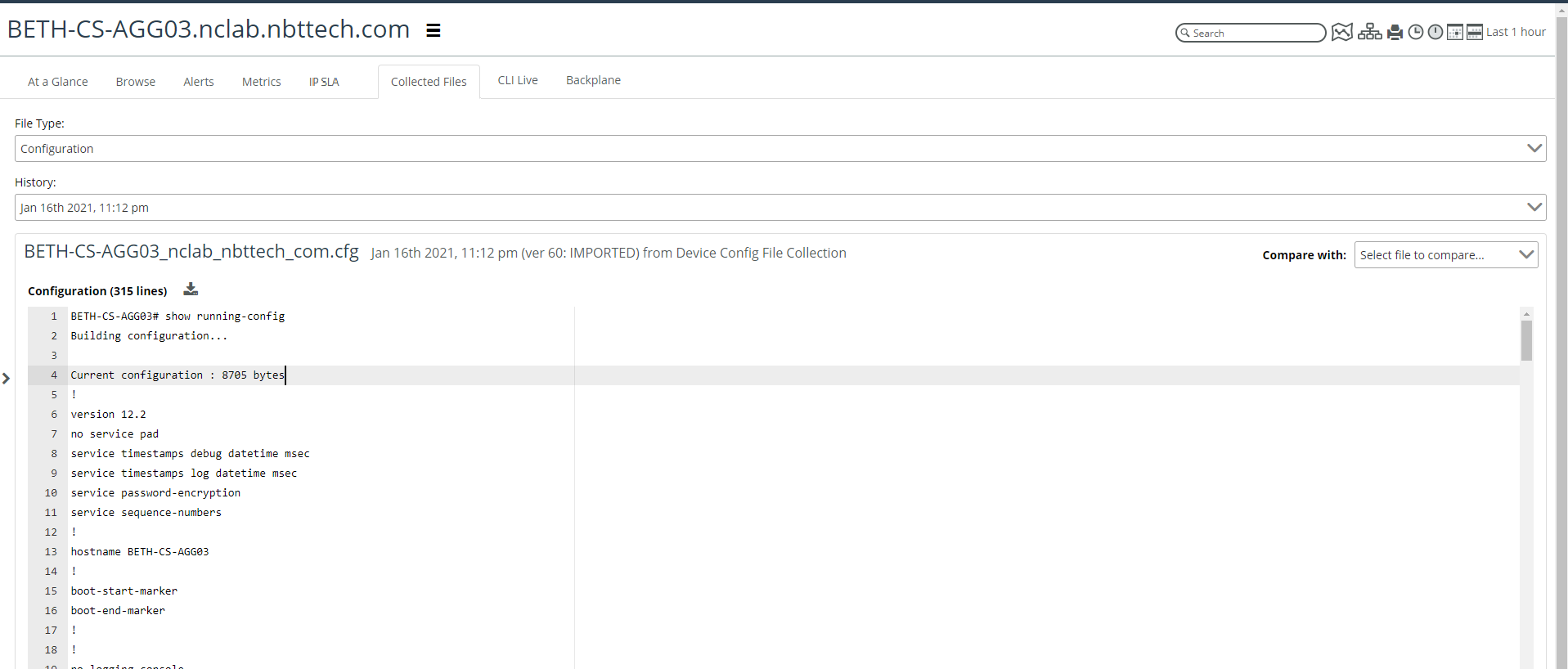
The Device page’s Collected Files tab has been rearchitected and reimagined to add additional functionality with a new, modern look-and-feel, as shown in the following screen.
Device page’s Collected File tab
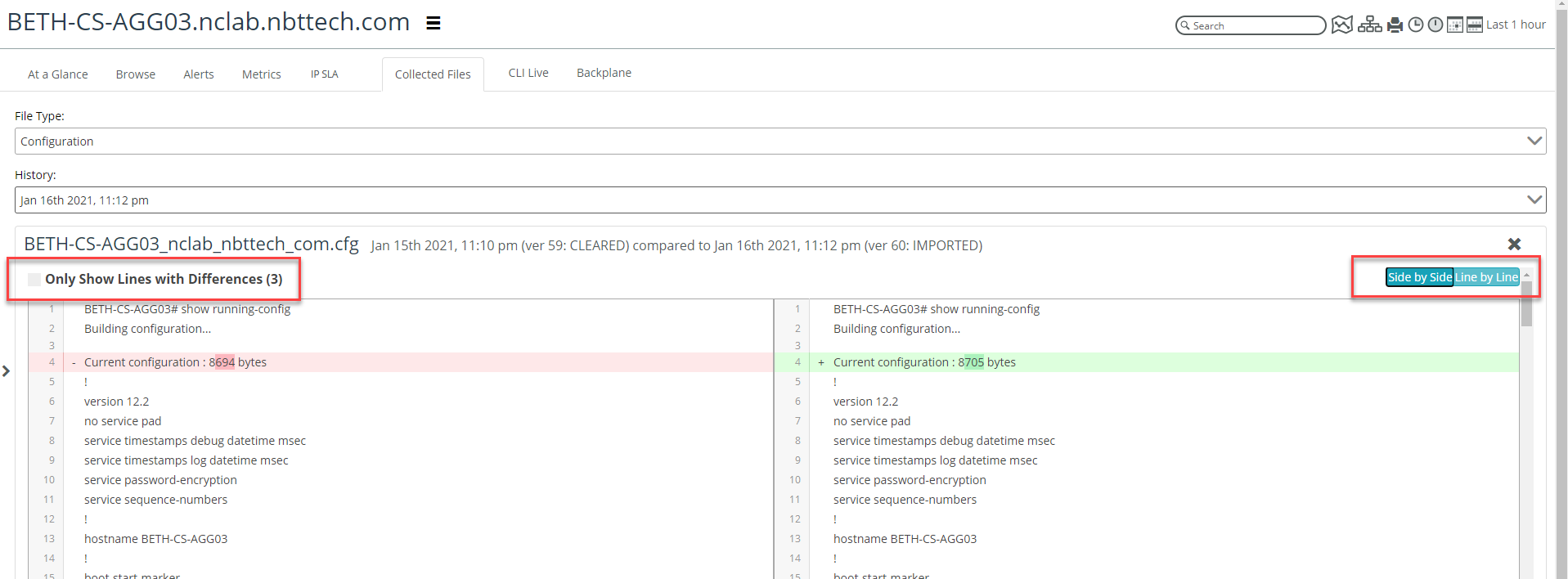
The side-by-side comparison feature has also been enhanced to display how the changed lines are displayed, so you now have the option to view the configuration file differences line-by-line or view just the differences using the Show Differences Only option, as shown in the following screen.
Side-by side comparison
For API and browser scalability reasons, the maximum number of lines that can be displayed in the Collected Files tab of the Device page is 40,000 lines.