Manually adding WMI-enabled devices
The procedures in this section are about adding devices to NetIM without using the Add/Discover Devices wizard.
Accessing an Active Directory server using LDAP
If you do not have WMI access to an Active Directory server, you can instead import devices using the LDAP server using the Device Manager. Alternatively, you can add single devices using the Device Manager, as covered in
To add a single device using the Device Manager. Using the Device Manager is an alternative to using the Add/Discover Devices wizard, documented in
Add/Discover Devices wizard.
To use the procedures in this section, you need:
• Credentials with access to the Active Directory server and that let you access it using LDAP.
• An LDAP-distinguished user account name and password with enough privileges to access the list of computers maintained in the Active Directory server.
• To find your distinguished username on a Windows 10 (or newer) workstation or on any Windows Server system, log in to that system with the username you plan to access the Active Directory server with, and then follow the procedure below:
To find your distinguished username
1. Open a command window on the system where you are logged in to as a domain user, and enter the following command:
whoami /fqdn
The distinguished username is returned in a format like the following:
CN=bob,CN=Users,DC=company,DC=com
You use your domain password with your distinguished username.
2. When you have your distinguished username, perform the following procedure to import the WMI-enabled devices.
To import devices using LDAP in the Device Manager
1. Choose Configure > Device Manager.
The Device Manager screen appears.
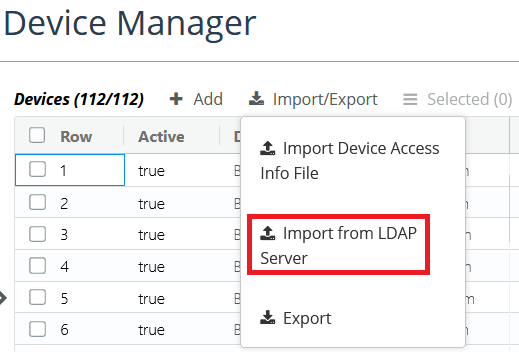
2. From the Import/Export link select Import from LDAP Server, as shown in the following screen.
Import from LDAP server icon
3. In the Import from LDAP Server dialog box, fill in the LDAP Server address and port, and then fill in the LDAP Credentials. The user’s distinguished name is the name of the account that Alluvio Portal uses to log on to the Active Directory server and is a combination of the user account and its position within the LDAP tree hierarchy. In Password, the Alluvio Portal import process requires that you enter the corresponding password for that user. (For details on how to find your distinguished username, see
Accessing an Active Directory server using LDAP.)
4. To restrict the imported WMI-enabled systems to those with resolvable DNS names, select the check box that appears.
5. In the Advanced block, you can also:
– (Optional) Modify the default query in LDAP query.
– (Optional) Set a time out that the query must access the LDAP server by the length of in LDAP server query timeout (ms). The default timeout is 10 minutes, expressed in milliseconds.
The default LDAP query is: (&(objectCategory=computer)(operatingSystem=*Server*))
To find systems that do not have Server in their operating system name, you would modify the query accordingly.
6. Click Import to save the information and initiate the import action. When the action is complete, the list of devices found displays in a table inside the Device Manager. After this step, it would be good to state that users will then have to manually edit and enable Collect WMI and collect metrics flags for them to be considered for polling.
You can, alternatively, choose to add only a single device using the Device Manager, as outlined in the procedure that follows.
To add a single device using the Device Manager
1. Choose Configure > Device Manager.
The Device Manager screen appears.
2. Click the Add icon to open the Create Device dialog box, as shown in the following screen.
Create device pop-up
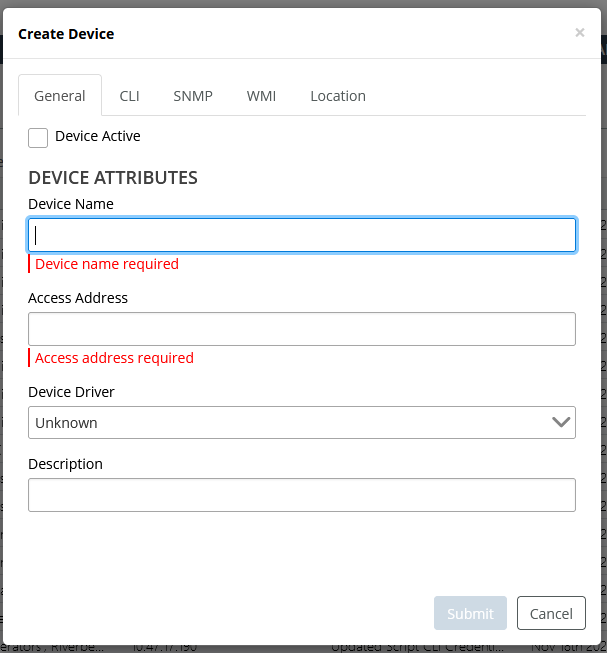
3. On the General tab, select Device Active, enter the Device Name, Access Address (only the hostname is allowed, not the IP address; you can append <domain-name> to it, but that is not required), select the Device Driver from the list (or leave it unknown if you do not see an appropriate driver in the list). You do not have to enter a Description, as the LDAP server automatically populates that field with Imported from LDAP Server.
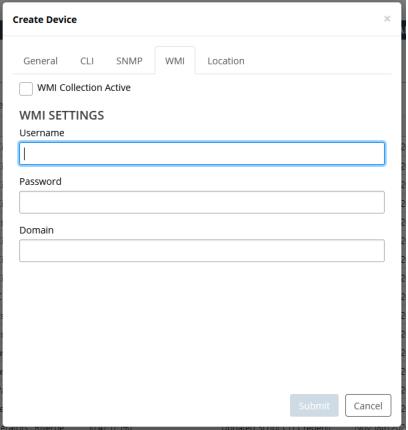
4. Select the WMI tab, select WMI Collective Active, and enter the appropriate credentials on the WMI-enabled device in the Username, Password, and Domain fields.
WMI tab
5. When you are satisfied with your choices, click Submit, and then review the devices imported in the next dialog box.
You can remove any unwanted devices you see in the list.
For more information on viewing imported devices, see
Controlling Direct Collection.
To collect metrics from the device, you need to create a polling profile and assign it to the device. For more information, see
Configuring Metric Polling.