Configuring suppression rule expiry types
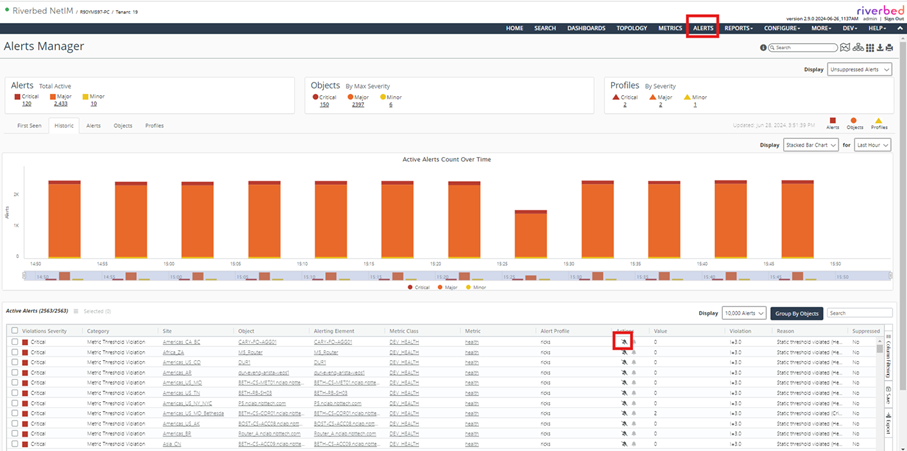
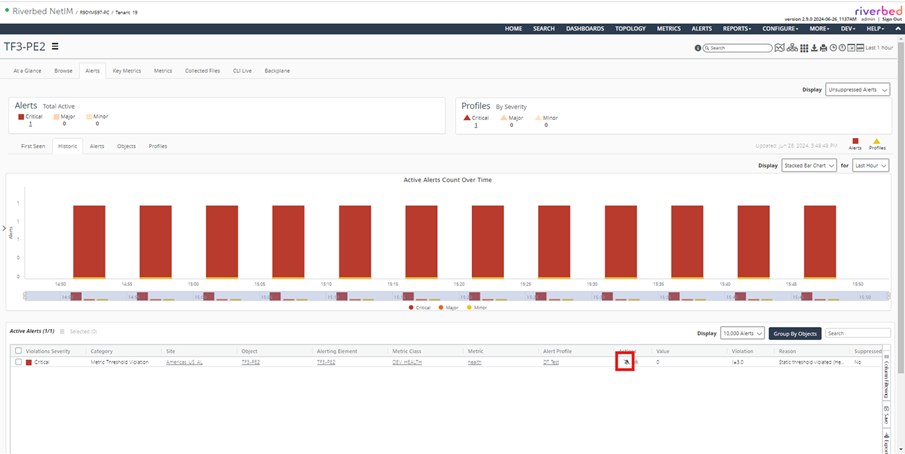
The expiry type is configured when creating the rule. Rules can be created by clicking on the suppression icon in either the Alerts Manager or in the Alerts tab for any object.
Enable suppression icon via Alerts Manager
Enable suppression icon via Alerts tab on object
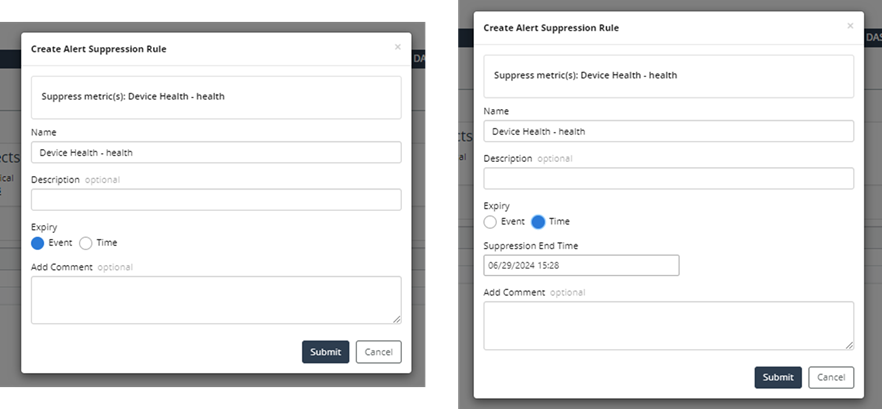
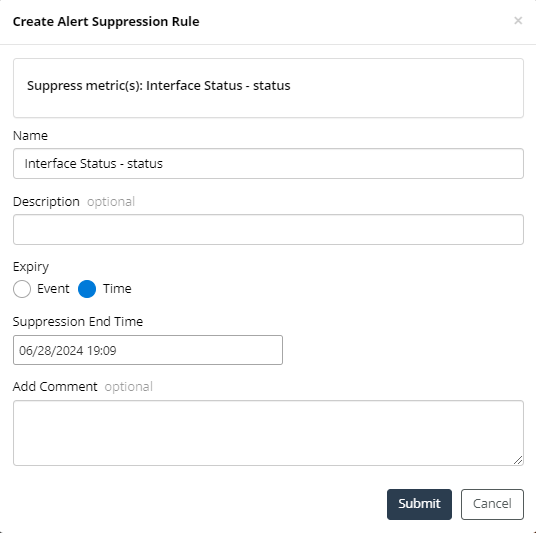
After clicking on the suppression icon, the dialog box for creating the suppression rule will be displayed. You can select either “Event” or “Time” for the Expiry type. If “Time” is chosen, the Suppression End Time will also need to be specified.
In addition to specifying the end time of the alert suppression, you can add additional comments. After you are satisfied with the changes, click Submit.
Alert suppression creation
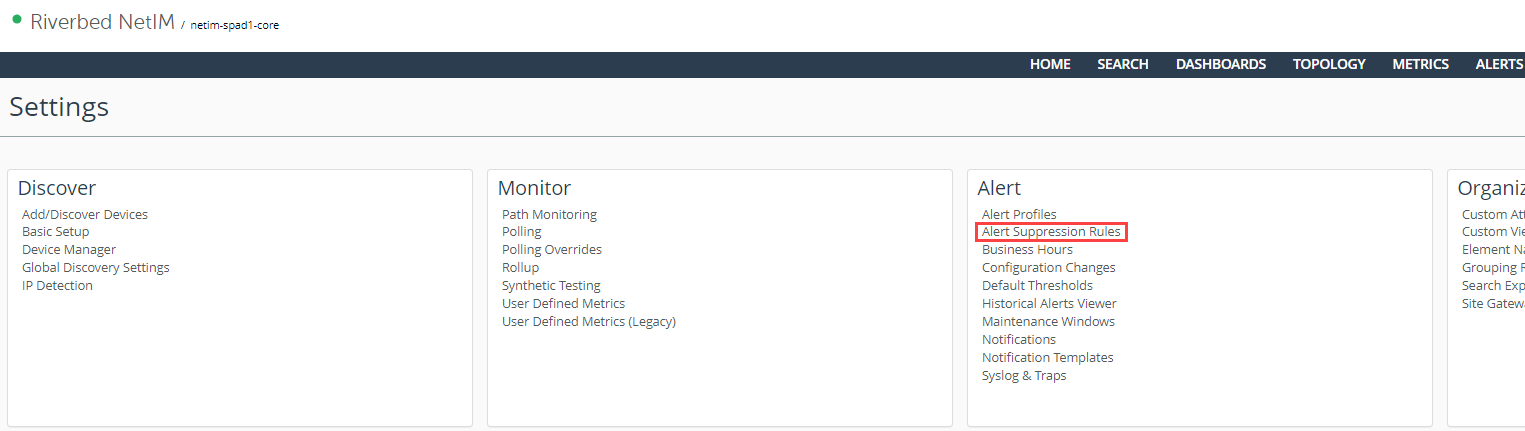
You can view all alert suppression rules in operation under Configure > All Settings > Alert: Alert Suppression Rules.
Alert suppression rules on the Settings page
The list of all configured Alert Suppression Rules that are in operation in the network are shown below. You can edit it if you want to change anything. Additionally, if you would like to add more comments to a suppression rule, you can do that as well.
Alert suppression rules

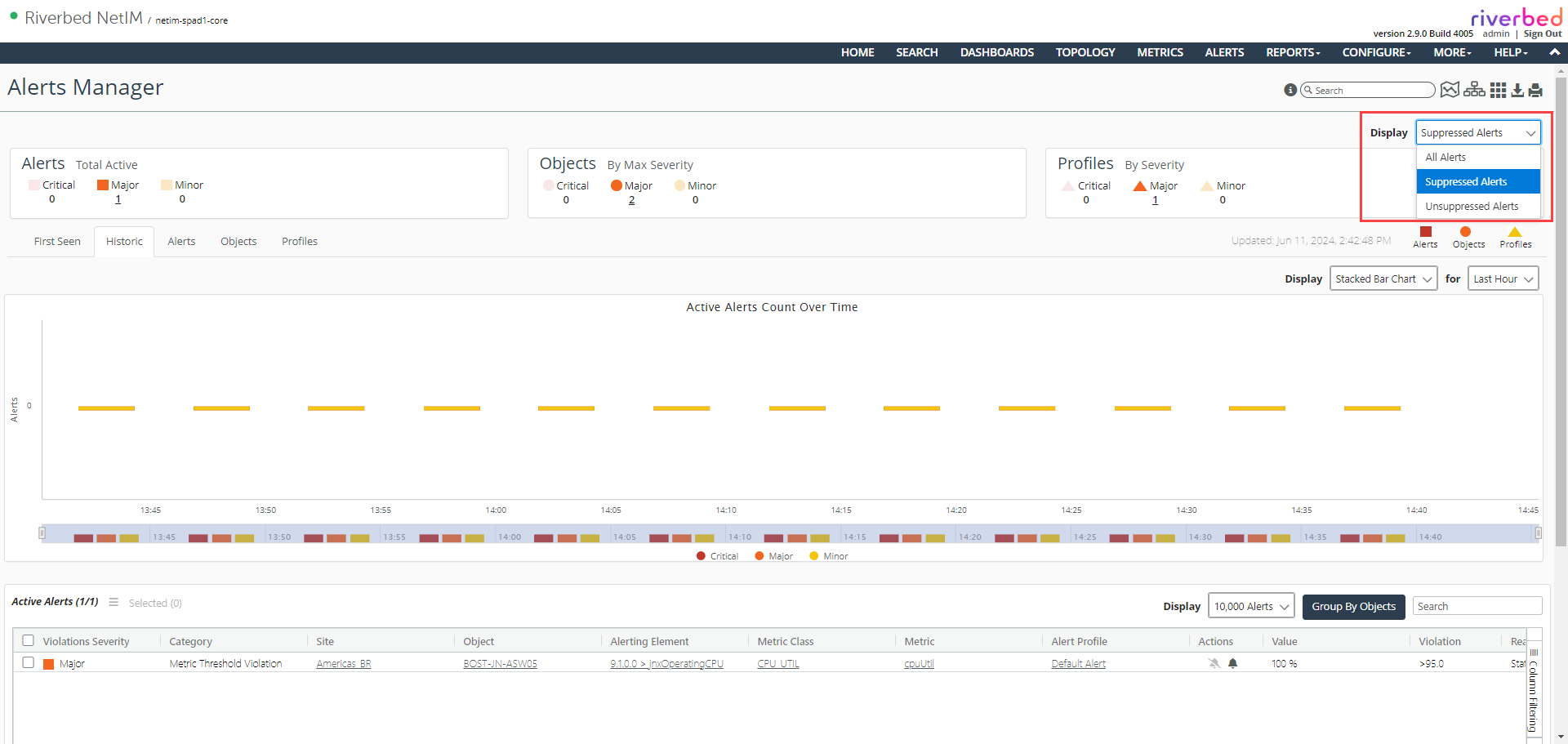
Alert suppression happens immediately. You can verify this by switching to the Suppressed Alert mode in the alerts manager page.
Shows all suppressed alerts
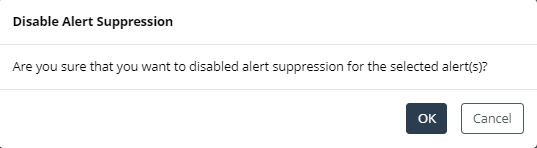
To remove suppression, click the bell icon and it will delete the alert suppression rule and will also disable suppression on that alert. This opens a dialog box to confirm your intentions. Click OK and it will remove the alert suppression rule if that was the only element associated with that rule. In addition to removing the alert suppression rule, it will disable suppression; that is, it will enable notification of those alerts if they happen again in the future. The next time the alert happens, you will see the alert appear in the alerts manager. (This depends, based on the poll frequency and the time when the violation really occurs based on the metric value crossing any bounds).
Disable suppression on the alert
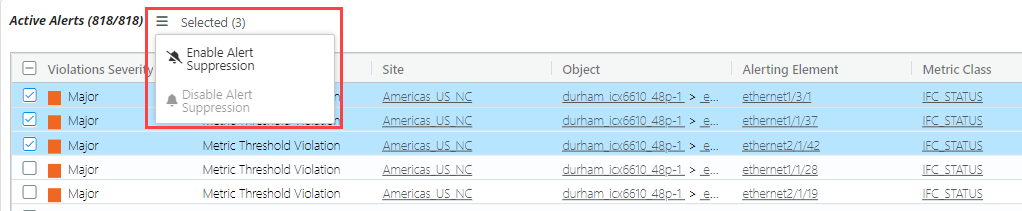
In the Alerts Manager page, if you want to disable several alerts that have similar characteristics (same metric class and same metric field), you can select them and create the alert suppression rule.
Enable alert suppression for multiple alerts
This will pop-up the dialog box as before.
Multiple alert suppression rule
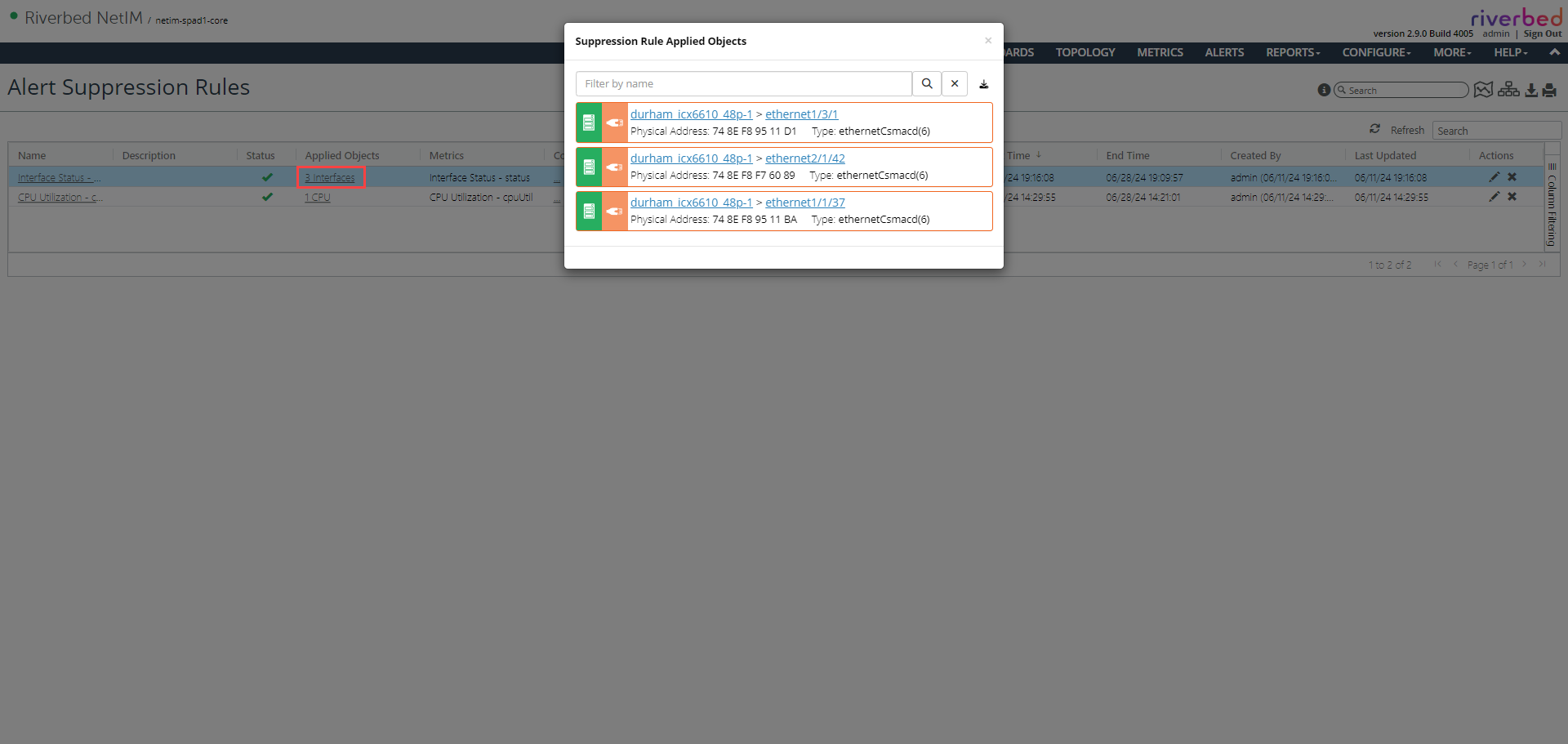
You can go back to the Alert suppression rules page to view this newly created rule. In that page, if you want to quickly look at all the interfaces on which this alert suppression rule was created, you can simply click Applied Objects. Even though the screenshot below shows all the applied objects are on the same device, this is not necessary. The rule needs to be on the same metric class and metric field but not on the same elements.
Alert suppression rules for multiple objects