Device view
A device curated view, like the one shown below, focuses on a single device and presents information about the overall health of the device, its monitored interfaces, and changes that have occurred. You can also view and explore neighboring devices (up to 5 hops away) in the Network Neighbors panel. From the device object view, you can drill down for more information about interfaces or utilization statistics, or you can discover information, such as specific metrics or attributes, on the view tabs.
Device view
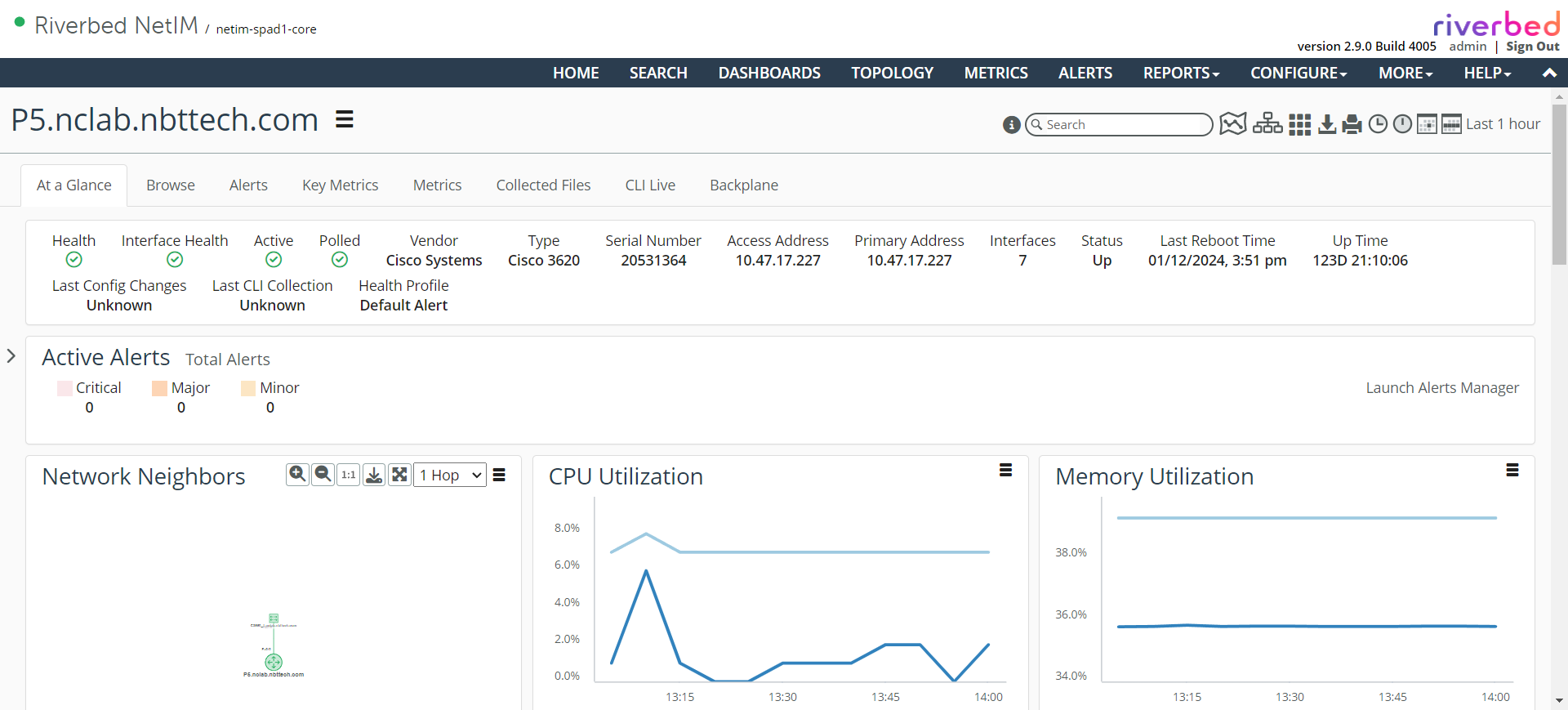
The following panels are displayed by default for a device:
• Network Neighbors
• CPU Utilization
• Memory Utilization
• Disk Utilization
• Devices Availability
• Interface Health
• Top Interfaces – Utilization
• Top Interfaces – Packet Error Rate
• Top Interfaces – Packet Discard Rate
• Synthetic Tests – By Test Type
• Configuration Changes
• NetAuditor Policy Violations
The following panels can be added to a device view:
• Data
– Metric Chart
– Riverbed NetProfiler
– Top/Bottom N Metric Chart
– Top/Bottom N Metric Bar Chart
– Metric Period Summary
– Metrics Table
– Enumerated Time Series
– Device Hardware Status
– Device Entity Sensor Data
– Gauge
– Metric/Attribute Value
– Attributes
• Summary
– Health Summary
– Configuration Changes
– Configuration Changes – Bubble Chart
– Time-Based Metric Summary Bubble Chart
– Synthetic Tests by Test Type
– Navigator Tree
– Event Details
– Org Policy Violation Table
– Org Policy Violation Summary
• Maps
– Topology
• Banners
– Summary
– Alert Summary
– Header/Separator
Network Neighbors panel controls
The Network Neighbors panel for devices defaults to a high-value schematic layout and provides interface name annotations, object information panels using mouseovers, object selection, and right-click operations.
The controls in the Network Neighbors panel let you set the zoom level, select the number of hops from the object you want to see, and choose an action for a selected device in the panel.
This table describes each control.
Icon | Control | Description |
| Zoom In | Increases the zoom level of the view. |
| Zoom Out | Decreases the zoom level of the view. |
| Zoom to Original Size | Returns the view to the original zoom level. |
| Export to Vizio | Exports topology to Visio. |
| Full-screen topology | Displays the topology on one screen. |
| Hop Count | Choose how many route hops away from this device you want to display (up to 5 hops). |
| Actions | This pop-up menu is active when you have selected an object in the neighbors display. The actions listed depend upon available actions for the object type. For more information, see
Topology actions. |