Troubleshooting issues with adding WMI-enabled devices
If you are adding devices through an Active Directory server on a Windows 10 system, to aid you in
troubleshooting, you should first download the Remote Server Administration Tools for Windows 10.Some standard ways you can troubleshoot issues with adding WMI-enabled devices are included in the following procedures.
For more information on general WMI troubleshooting, see
Troubleshooting WMI.To ensure you can connect to the Active Directory server
1. Start the WBEMTest tool by clicking Start and entering wbemtest in the Search Programs and Files text box.
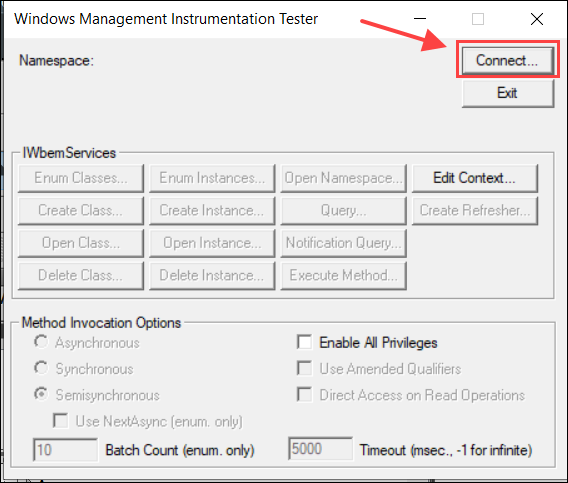
2. When the Windows Management Instrumentation Tester dialog box appears, click Connect, as shown in the following screen.
WMI Tester server pop-up
The Connect dialog box appears, as shown in the following screen.
Connecting to Active Directory server
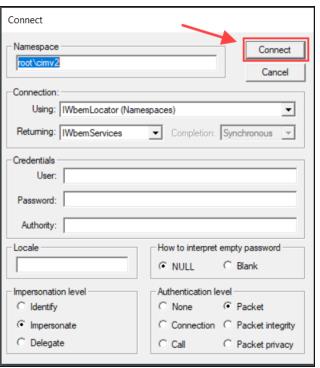
3. In the Connect dialog box, enter:
– Namespace as \\<ad-server>\root\directory\ldap where <ad-server> is the IP address or hostname of the Active Directory Server
– Credentials for accessing the Active Directory/LDAP server in the form domain>\<username>, such as Riverbed\jjones
4. Click Connect.
6. If you cannot connect to the server, that could be the reason that NetIM cannot find the WMI-enabled devices. Contact your IT/network administrator to get access to your AD Server.
To check for existence of devices in the Active Directory server
1. If you have performed the procedure described in
To ensure you can connect to the Active Directory server and connected to the Active Directory server successfully, you can now try to connect to one of the other machines (usually but not necessarily workstations) whose information is in the Active Directory server.
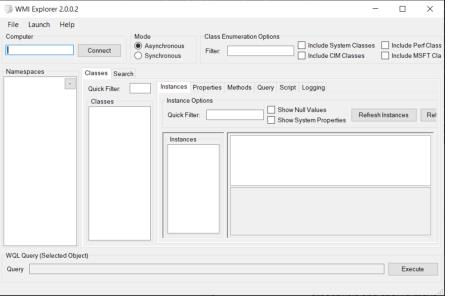
2. If you can connect to the Active Directory/LDAP server, then run the WMI Explorer included with your Windows Server (or downloaded to your Windows 10 system). The following screen appears.
WMI Explorer
3. In the Connect dialog box, enter:
– Namespace as \\<ad-server>\root\directory\ldap where <ad-server> is the IP address or hostname of the Active Directory Server
– Credentials for accessing the Active Directory/LDAP server in the form <domain>\<username>, such as Riverbed\jjones
4. Click Connect.
5. Click Query and enter this query into the Query text box:
select * from ds_computer
6. Results will vary. Under ADSIPath, you find the names of all hosts in that Active Directory server, starting with LDAP://CN=<host-name>,either OU=Domain Controllers or CD=Computers followed by DC=<domain-name> and DC=com.
To test connectivity to target WMI-enabled devices
1. Start the WBEMTest tool by clicking Start and entering wbemtest in the Search Programs and Files text box. The following screen appears.
WMI Tester pop-up
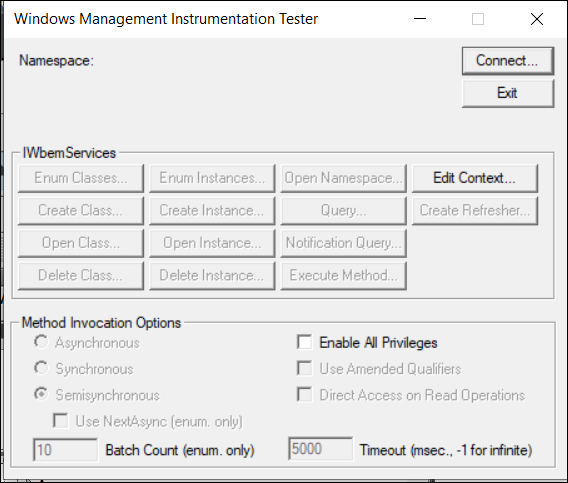
2. When the Windows Management Instrumentation Tester dialog box appears, click Connect. The following screen appears.
Connect pop-up
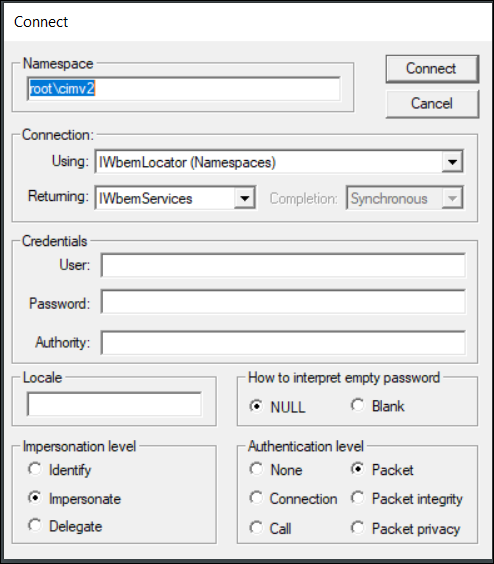
3. In the Connect dialog box, enter:
– Namespace as \\<wmi-host-or-server>\root\cimv2.
– Credentials for accessing the targeted WMI-enabled device in the form <domain>\<username>, such as Riverbed\jjones.
4. Click Connect.
5. If you can connect to the device, then you are able to connect to the device using those credentials and should be able to monitor the device.
If you cannot connect to the device, then verify the hostname is correct and/or investigate the validity of your credentials.
If the Add/Discover Devices wizard or Device Manager still cannot discover the machine, remote log in to the machine and run Windows Services (services.msc) and check to be sure the following services are running:
• Remote Procedure Call (RPC)—Must have status of Started.
• Windows Management Instrumentation—Does not require a status of Started, but should have a status of Startup Type of Automatic.
• DCOM Server Process Launcher—Should have status of Started.