Troubleshooting WMI
This section explains how to address common issues with WMI, and consists of the following topics.
Before troubleshooting issues with WMI, ensure that you are familiar with the requirements for WMI system attribute collection and metrics polling, specifically that PowerShell remoting has to be configured on the target Windows systems, since the NetIM WMI workflow is based on the PowerShell. For more information, see
WMI prerequisite checklist.Which WMI Namespaces and classes does NetIM access for polling?
The minimal required Namespaces for model collection are defined on core in /data1/riverbed/NetIM/<version>/lib/xml/res/WmiWmiClasses_dev.res, while the required metric polling Namespaces are defined in /data1/riverbed/NetIM/<version>/lib/xml/res/DynamicPollingWmiClasses_dev.res.
In NetIM version 2.4.0, users have to give complete access both to the ROOT namespace and the following sub-namespaces by adding these entries to WmiWmiClasses_dev.res and DynamicPollingWmiClasses_dev.res:
• ROOT\CIMV2
• ROOT\StandardCimv2
• ROOT\directory\LDAP
Depending on what metric classes you are trying to collect, you may also need to give permission to the following:
• ROOT\citrix
• ROOT\citrixLicensing
How do I run PowerShell commands to confirm that ROOT Namespace access is enabled on devices targeted for NetIM V2.x WMI polling?
For WMI polling to work in NetIM, the polled devices need to have ROOT namespace access enabled.
To confirm that ROOT namespace access is enabled on the target devices
1. Log in to a worker node on the Docker swarm as netimadmin. The default password is netimadmin,
2. Enter the PowerShell mode on the worker node by entering the following commands:
netimadmin@serv18-230-wkr[netimsh]:~$bash
netimadmin@serv18-230-wkr:~$ pwsh
PS /home/netimadmin>
3. Set the following variables, replacing the host_ip_address, wmiuser and wmiuser_pwd with your respective values:
– PS /home/netimadmin> $User1 = "<host_ip_address>\<wmiuser>"
– PS /home/netimadmin> $PWord1 = ConvertTo-SecureString -String "<wmiuser_pwd>" -AsPlainText -Force
– PS /home/netimadmin> $Credential1 = New-Object -TypeName System.Management.Automation.PSCredential -ArgumentList $User1, $PWord1
– PS /home/netimadmin> $session1 = New-PSSession -Name mySession -Credential $Credential1 -ComputerName <host_ip_address> -Authentication Negotiate -Verbose
4. Run the following command, replacing Namespace with the appropriate value:
PS /home/netimadmin> Invoke-Command -Session $session1 -ScriptBlock {Get-CimInstance
-Namespace -Class_Namespace | Select-Object -Property Name}
The following screen shows Namespaces returned by the PowerShell Invoke-Command. If this table is empty, then ROOT namespace access is not enabled on the target devices.
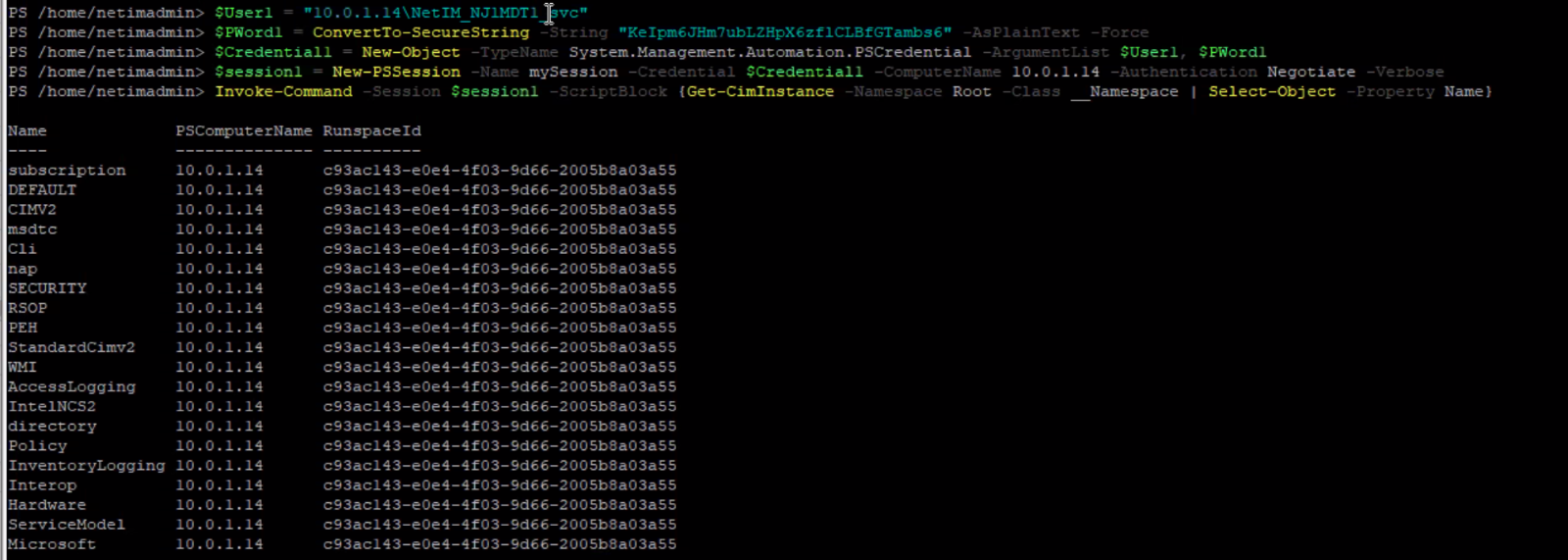
Namspaces returned by the PowerShell
Resolving issues with PowerShell remoting and WMI
For information on resolving issues with PowerShell remoting and WMI, see
WMI collection and metric polling.How do I run the WMITEST utility on NetIM 2.x core?
The WMItest utility is used to find the device interface that NetIM is receiving metrics from and provide details about the device interface.
To launch the WMItest utility
1. Log in to NetIM core. The username and default password are netimadmin/netimadmin.
2. At the netimsh prompt, enter the following command:
start xrdp 1h
3. From a command prompt on your local system, log in to NetIM core using RDP.
4. In the RDP terminal enter the following commands to invoke the WMI Test Utility:
bash
cd /data1/riverbed/NetIM/<VERSION>
./app.sh WMITEST
5. When the WMI Test Utility appears, select or add devices, and then click Run Test in the lower right corner.
Metrics data not visible in WMI polling even after successful poller/collection status
While performing WMI polling in NetIM 2.3.0/2.3.1, no metric data is visible with a "No data to display" error under every metric class along with the following conditions:
• WMI Polling is successful in Poller Status, Collection Status, and in the Device Manager: Statistics > View WMI History for the target device.
• The WMITEST utility from core or worker xrdp is successfully returning data.
In NetIM 2.3.0/2.3.1 PowerShell Remoting is used to poll the Windows devices by creating a winRM session and then invoking the required metrics data.
• NetIM has collected the basic device attributes like Vendor, Serial Number, Interfaces (greyed out) and is showing the overall device status as Healthy with Interface Healthy status as Unknown.
This issue can occur due to multiple reasons. The two most common are the following:
• While using a local user, the domain field in the NetIM WMI configuration should have the Device name and cannot be left empty.
Note the following:
– This 'Device name' should be resolvable to the access IP address of the device itself via DNS.
– NetIM should be connected to the DNS server that has the A record for the Windows device to be polled.
– If both of the above cannot be implemented, edit the /etc/hosts file on the core and worker nodes and add an entry for DNS.
– In the WMI tab for the device, add the Domain name in the Domain text box.
WMI information is then collected and displayed for the target device.
• The WMI user does not have adequate privileges to access the ROOT Namespace.
– Open wmimgmt.msc in the Windows device and choose WMI Control > Properties > Security > Root and click Security in the lower right of the screen, which brings up the Security for Root page.
– Make sure the following options are ticked for Authenticated Users: Execute Methods, Provider Write, Enable Account, and Remote Enable.
– All options should be ticked for Administrators.
These privileges must be given to the ROOT Namespace first to create the data model for the device in NetIM. Once the data model is created, the privileges listed above are only required for the CIMV2 namespace.
WMI login fails on NetIM 2.3 if a user password contains a special character
After adding a Windows server to NetIM using the Device Manager and trying to collect WMI data from this device, the connection/login fails.
To address this problem
1. Ensure that PowerShell version is 5.1.x or higher, PowerShell remoting is supported, and the user is in the correct groups on the remote windows server and verify the WMI connection to the Windows server from the NetIM core/worker CLI. For more information, see
Resolving issues with PowerShell remoting and WMI. 2. If the Windows user password has a special character in it or a back tic (‘), this will prevent a WMI login on NetIM.
To determine if the user password contains a special character or back tic, enter the following command. If the password contains a back tic or a special character, the command will fail:
$PWord1 = ConvertTo-SecureString -String "<Password>" -AsPlainText -Force
3. If the command fails, replace the double quotes with single quotes around the password, as follows:
$PWord1 = ConvertTo-SecureString -String '<Password>' -AsPlainText -Force
Troubleshooting issues with adding WMI-enabled devices
For information on how to troubleshoot issues with adding WMI-enabled devices, see
Troubleshooting WMI.Troubleshooting winrm firewall exception
If an interface is on a public network, winrm quickconfig will fail (intended security feature).
To determine if interfaces are public or private, execute Get-NetConnectionProfile from the PowerShell.
• If the interface is public, change the network connection type to Domain or private.
• If no interface is on a public network, choose Control Panel > All Control Panel Items > Network Connections, and try disabling all but the required Ethernet adapter.
WMI and NetSensor troubleshooting
NetSensor collects the WMI Configuration for a Windows device that is read into the WMI Class Definition Container. Based on the device configuration (system configuration, hardware details, and interfaces) and polling profile it determines what metrics it can collect. A list of WMI classes is then sent to the Poller.
The Poller uses the credentials to establish a WMI Session to the device using the WMI API.
The WMI Classes are collected and sent to the Data Collector over the WMI session and stored. The results of the collection (Success, Incomplete, etc) are sent back to the Poller and the session is closed.
Once the session closes the Poller sends back a confirmation. The Data Transformer normalizes the WMI class data as XML for it to be parsed and persisted into the database or forwarded to the alerting framework or streamed to clients such as Portal using the Live Update/DCL Proxy services.
All WMI classes, class instance and properties used for metrics polling are registered in file DynamicPollingWmiClasses_dev.res under <netsenoristalldir>\lib\xml\res.
All WMI classes, class instance and properties used for device modeling are registered in file
WmicWmiClasses_dev.res under <netsensorinstalldir>\lib\xml\res.
Common issues and solutions
No interfaces are present on the device in NetSensor but I do see system-level information.
The Windows account being used by NetSensor does not have sufficient access. Ensure that the WMI access requirements are met. For more information, see
Metrics data not visible in WMI polling even after successful poller/collection status.
The Windows device is encountering high CPU when WMI metrics are polled. *
The remote Windows system may be under heavy load from other install applications and services. Disable polling and check the system load to establish a baseline load. Reduce the number of polled metric classes or reduce polling frequency.
Additionally, the remote Windows systems WMI repository may be large. When NetSensor polls it may trigger a repository verification which can consume CPU resources on the remote system. Identify which WMI classes are taking up the space in the repository and remove them. For more information, see
WMI/Objects.Data bloating.All WMI metrics are not getting polled even though they are enabled for polling.
The remote Windows system may not be responding to the request for the specific WMI class that provide the metric data. Use a WMI testing tool to check the device to see if the class is available on the remote system.
The following may also be the source of the problem:
• The account used to access WMI on the remote system may not have access to this WMI class. Please make sure that the account meets the requirement for establishing WMI access in NetSensor.
• The remote Windows system may not be able to respond for a specific metric at the desire polling frequency. As a result the metric may be getting dropped from polling. Reducing the polling frequency for these long running metric classes may resolve the issue.
I have another product that's polling WMI on the devices just fine. Why isn't NetSensor able to poll these devices?
A major difference between NetSensor and other products that perform metric polling is the necessity of a device model. NetSensor has to create a model of a device that contains system and interface data information before metrics polling is performed. If for some reason the account used by NetSensor does not have sufficient access to the WMI classes under the root\cimv2 namespace to gather the information necessary to model the device then polling will not start. Ensure that the account meets the requirements for establishing WMI access in NetSensor.
Additionally, the other product may be using a fallback method that relies on another API accessing performance data on remote Windows systems.
WMI uses a range of source ports when communicating How do I restrict this to specific TCP ports in order to allow WMI polling/collecting for devices accessible only through a firewall?
For information for configuring WMI to use static ports, see
Setting Up a Fixed Port for WMI.
What are the key logs and reports I should check if issues are encountered.
• Check the Event Dashboard for any an WMI polling Events.
• Check the Auxiliary Services logs located in <netsensorinstalldir>\log
• Check the WMI poller report file located on core in the following directory:
/opt/riverbed/NetIM/op_admin/tmp/vne/reportFiles/WMI Poller
– Logs reportFiles \WMI Poller\WMI Poller\stats\summary\perSchedulePerTriggerSummaryStatsdatetime.txt
+ Number of devices dropped per cycle
+ Number of devices discarded per cycle
+ Number of devices removed per cycle
– Logs reportFiles\WMI Poller\stats\perSchedulePerTriggerStatsdatetime.txt
+ Number of devices dropped per cycle
+ Number of devices discarded per cycle
+ Number of devices removed per cycle
+ Per device details about each poller metric (successful, unresponsive, or incomplete polling attempts)
– Logs reportFiles\WMI Poller\provision\Running.log
+ Is data polled for the device?
+ Are their polling exclusions for certain metric classes?
WMI logging
WMI logging is useful if you want to confirm that WMI queries are actually being processed on the remote system being polled.
For information on how to enable WMI logging, see
Logging WMI Activity.WMI troubleshooting tools
The following tools are helpful for WMI troubleshooting.
WMITest tool
The WMITest Tool and a diagnostic utility included with the NetSensor installation. The tool allows you to test WMI Collection (device modeling) and Metrics Polling. The tool displays WMI-enabled devices already configured in the NetSensor, and allows you to add new devices and their credentials.
WMI error codes
The following WMI error codes are commonly encountered when troubleshooting WMI connections.
Code | Connection type | Message |
80041064 | Login | Local Credentials Must Be Used |
80041003 | Login | Access Denied |
80041062 | Login | Privilege not held |
80041068 | Login | Null security descriptor |
80042003 | Login | Authorization not privileged |
8004100 | Polling | Invalid Namespace |
For a complete list of WMI error codes, see
WMI Error Constants.WMI Explorer
WMI Explorer is a program that allows you to browse and view WMI namespaces, classes, instances, and properly from a single window. For more information, see
WMI Exploder on github.
PowerShell
PowerShell can be used to validate WMI access.
On a Windows system search for PowerShell in the Start search box. When located, right-click and select the RunAs Administrator option.
In the PowerShell window you can enter commands like the following to query WMI classes on the remote device:
Get-WmiObject -Namespace "root\cimv2" -Class <wmiclass> -Impersonation 3 -Credentials <domain>\\<username> -ComputerName <remotehost>
• wmi_class—The WMI class you want to query.
• domain—The domain for the account on the remote system you wish to query.
• username—The login ID for the account on the remote system.
• remote_host—The host name or IP address of the remote system.
For example:
Get-WmiObject -Namespace "root\cimv2" -Class Win32PerfFormattedDataPerfDisk_LogicalDisk -Impersonation 3 -Credential opnet\clesane -ComputerName nc-win-cl
When you enter the command in the PowerShell you are prompted to enter a password.
Click OK and the query of the name class runs against the remote system, displaying the results in the PowerShell console.
If you want to measure the time taken to run the remote command you can use the PowerShell measure-command cmdlet with query, as follows:
measure-command {Get-WmiObject -Namespace "root\cimv2" -Class Win32PerfFormattedDataPerfDisk_LogicalDisk -Impersonation 3 -Credential opnet\clesane -ComputerName nc-win-cl}
Instead of the entire command output being displayed, only the measure time is displayed.
To display both the measure time and the output, add Export-Csv <path>\test.txt to the query, as follows:
measure-command {Get-WmiObject -Namespace "root\cimv2" -Class Win32PerfFormattedDataPerfDisk_LogicalDis Impersonation 3 -Credential opnet\clesane -ComputerName nc-win-cl | Export-Csv C:\test.txt}