Device Drivers wizard
You manage device drivers in the Configure > All Settings > Customize: Device Drivers wizard. You create, clone, modify or delete device drivers in the Device Drivers wizard. Modify system-defined device drivers or create your own device drivers to collect CLI data from any vendor. Create a device driver from scratch or choose an existing driver that is closest to your needs, and then clone and modify it.
In addition, you can use the Device Drivers wizard to create your own command types so you can collect any CLI data. When you define your own command type, NetIM collects and archives it, but most likely will be unable to import it. The archived files are available to clients, including analysis software.
To open the Device Drivers wizard
1. Choose Configure > All Settings > Customize: Device Drivers.
Device Drivers wizard
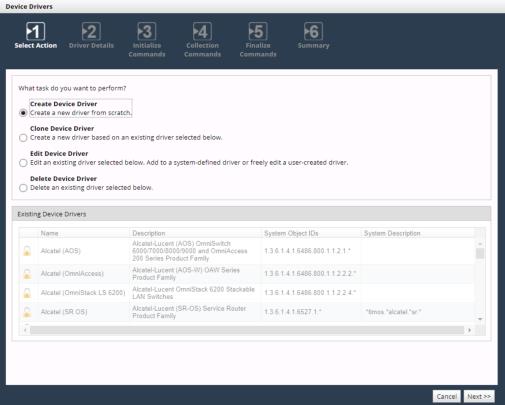
To create a device driver
1. Log in as a user with administrative privilege.
2. Choose Configure > All Settings > Customize: Device Drivers.
3. Select Create Device Driver.
4. Enter the necessary information for the new device driver, including the System Object ID and System Description. Each device driver should be assigned a unique System Object ID and System Description pair. For more information, see
Uniqueness of device drivers.
5. For most devices, an initialize command is required to turn off paging so that the device provides the complete response to a CLI command. Depending on the device, you may need to enter multiple initialize commands. To add an initialize command complete the necessary information for the command:
– Command(s)
– Comments
– Expected Prompt
6. Click Add.
If needed, complete
To create a command type to add a command type, and then return to this procedure and continue. The command type must be defined before you can add it to the device driver.
7. Add commands. For each command that you want to add, provide the necessary information for each command and click Add:
– Type—Choose a command type from the drop-down menu.
– Comments—Enter descriptive text.
– Command(s)—Enter a device configuration command. These are typically show commands.
– Expected Prompt—In most cases, you should set the expected prompt to Automatic. If the device prompt changes after each CLI command is sent, you should specify a regular expression that will match the changing device prompt.
8. For some devices, a finalize command is required at the end of the session to return the device to the state it was in prior to the NetIM login. For example, you may need to reenable paging. Depending on the device, you may need to enter multiple finalize commands. To add a finalize command complete the necessary information for each command and click Add:
– Command(s)
– Comments
– Expected Prompt
9. Review the device driver details.
10. If you need to make changes, click Previous.
11. When the information is correct, click Finish to save the new device driver.
To clone and modify a device driver
1. Log in as a user with administrative privilege.
2. Choose Configure > All Settings > Customize: Device Drivers.
3. Select Clone Device Driver.
4. From the list of Existing Device Drivers, click the device driver that you want to use as the basis for the new device driver.
To edit a device driver
1. Log in as a user with administrative privilege.
2. Choose Configure > All Settings > Customize: Device Drivers.
3. Select Edit Device Driver.
4. From the list of Existing Device Drivers, click the device driver that you want to edit.
To delete a device driver
You can only delete user-defined device drivers.
1. Log in as a user with administrative privilege.
2. Choose Configure > All Settings > Customize: Device Drivers.
3. Select Delete Device Driver.
4. From the list of Existing Device Drivers, click the user-defined device driver that you want to delete. User-defined device drivers are indicated by an unlocked icon.
5. Review the device driver details.
6. If you selected the incorrect driver to delete, click Previous.
7. If you selected the correct driver to delete, click Finish to delete the device driver. If you delete a device driver that is assigned to a device entry, the device driver for that device entry will change to “Unknown.”