Using the Search Expressions page
NetIM supports the ability to create persistent search expressions that can be set to personal use (default) or global by the user who created them. The search expressions can be created on the Search Expressions page or saved to the Search Expressions page from the Search page and from the search section when creating a Performance Summary report on the Reports page. For more information about saving search expressions, see
Managing search expressions.
To work with the Search Expressions page
1. Log in to the UI.
2. Choose Configure > All Settings > Organize > Search Expressions. The following screen appears.
Search Expressions screen
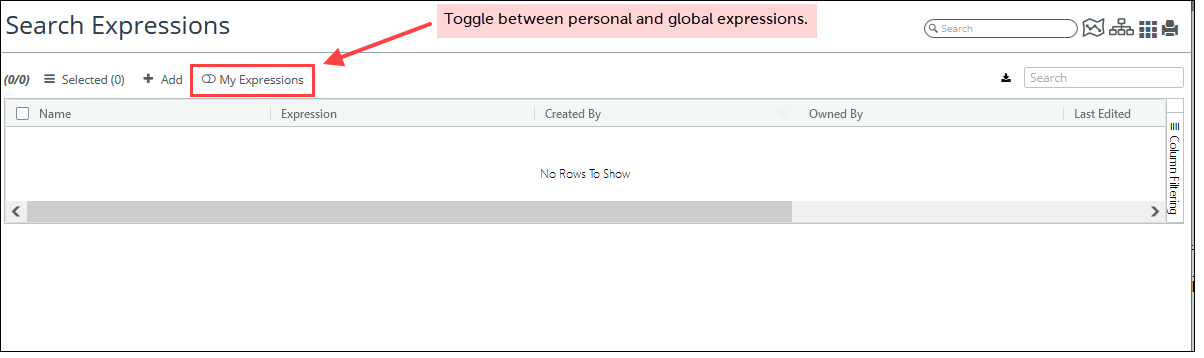
The Search Expressions page contains a list of all personal and global search expressions. You can also edit or delete the search expressions that you created.
3. To create a new search expression, click the +Add icon.
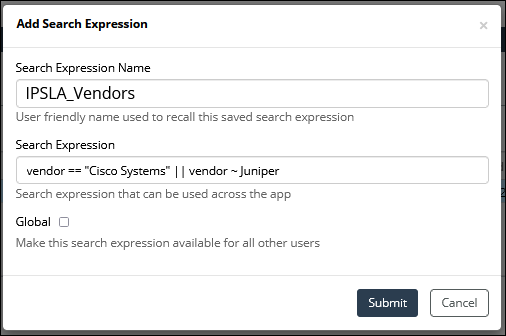
Enter the following information:
– Search Expression Name—A unique name for the search expression.
– Search Expression—The search expression you wish to persist across the UI.
– Global check box—Whether or not the search expression should be available to others.
The following example shows a vendor-specific search expression that is not global.
Vendor-specific search expression
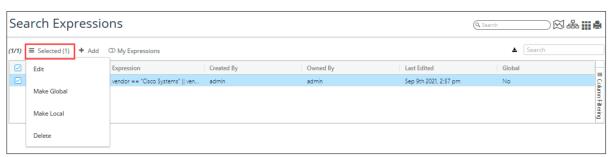
4. When you are satisfied with your selections, click Submit. The search expression then appears as an entry in the Search Expressions table, and can be edited, deleted, made global or local, as shown in the following screen.
Search expression appearing as an entry in the Search Expression table